Evolution of recalling Bash history
Written by Rickard Lindberg  in #favourite #rlselect #Bash #microblogimport
This article is about how I've become more efficient at using Bash, the interactive UNIX shell.
When I work in Bash, I often want to execute a command again. In the beginning I re-typed the command and pressed enter. This worked fine for short commands, but became tedious for longer commands.
In some shells this is the only way to enter a new command. But Bash remembers the recently executed commands and provides ways to recall them.
Cycle with arrow keys
The first way I learned to recall history was with the arrow keys. If I pressed Up the previous command was inserted at the prompt. I could continue for as long as I wanted. If I pressed Down the next command was inserted at the prompt:
```text
$ ls
$ date
$
$ date
$ ls
$ date
Cycle with Ctrl-P/Ctrl-N
Later I learned that Ctrl-P (previous) had the same function as Up and that Ctrl-N (next) had the same function as Down.
These shortcuts were more comfortable for me because I like to keep my fingers as close to the home row as possible.
Searching with Ctrl-R
Then I learned about Bash's interactive history search command. If I pressed Ctrl-R the prompt changed to this:
text
(reverse-i-search)`':
This special prompt allowed me to type parts of a command that I had executed
previously. Say I wanted to execute the last find command again. I typed
"find" and the prompt changed to this:
text
(reverse-i-search)`find': find -name '*.py' -a -type f
The text I typed, "find", was present before the colon. After the colon the
last command that I had executed that contained the string "find" was
displayed. In this case I did a search for Python files. If this was not the
match I was looking for, I could hit Ctrl-R again and the part to
the right of the colon would change to the next command in the history that
contained the string "find". Once I found the command I was looking for I had
two options: I could hit Tab to insert the command at the prompt:
text
$ find -name '*.py' -a -type f
This way I could edit the command before I executed it. Or I could hit
Enter to execute the command directly.
Now I was able to recall commands that I had executed long ago. I almost replaced all my usages of Ctrl-P/Ctrl-N with Ctrl-R. Except for the cases where I knew that the command I wanted to recall was only a few entries back.
Frustrations with Ctrl-R
The interactive search worked great for me when I knew what I was looking for. It did not work so great when I was more uncertain or when I mistyped the name of a command.
The interactive search works by having a pointer to en entry in the history. When I typed a command it would move that pointer to the next item in the history that matched. But if I mistyped, the search might still match something further back in history. But when I erased a few characters to correct my mistake, the search would continue from there. Say this was my history:
tac ~/.bash_historyecho frustrationecho withecho bash
I hit Ctrl-R to to begin searching for "bash":
text
(reverse-i-search)`':
But I mistyped. Instead of "b" I typed "f":
text
(reverse-i-search)`f': echo frustration
The search matched item 2. I erased the incorrectly typed character:
text
(reverse-i-search)`': echo frustration
The match remained. I typed bash correctly:
text
(reverse-i-search)`bash': tac ~/.bash_history
It now matched item 1 instead of item 4. The search continued from the previous
match. I would have wanted the search to always show the most recent match from
history. The easiest way I found to reset the search after a failure to find
what I was looking for was to just execute a dummy command. Usually I selected
ls because it was short to type and had no side effects.
Interactively filtering with external program
Then I was introduced to hstr by a colleague. It worked like a replacement for Ctrl-R. When I invoked it, it dropped into a text UI where my last history entries were shown. I could also type part of a command to narrow down the list. If I changed the search string, the narrowed down list changed accordingly. When I found a match I could similarly press Tab to insert the command at the prompt or press Enter to execute it immediately. It looked like this:
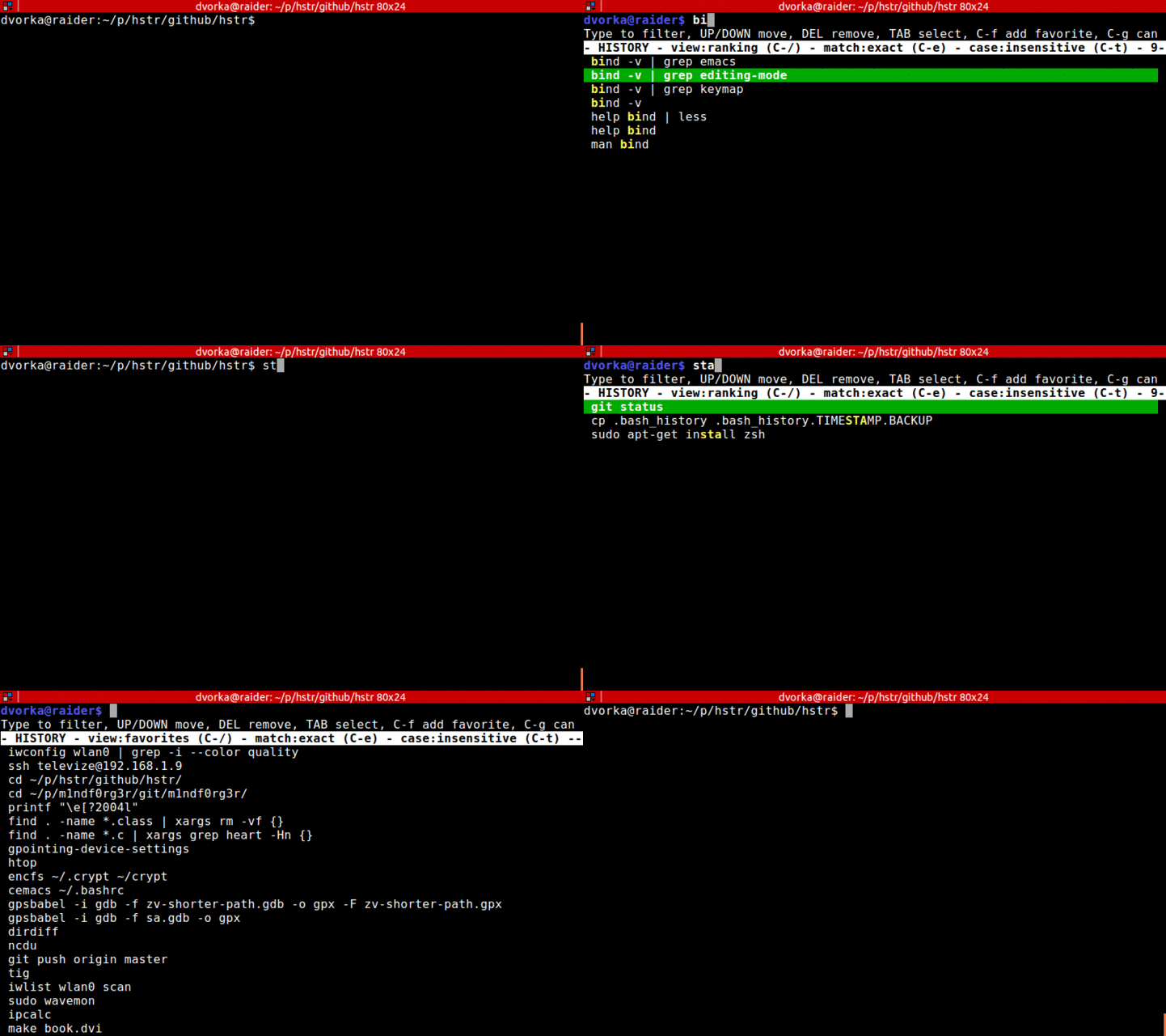
This solved my frustrations with Bash's interactive search. For me, this was a far easier way to find items from my history. The fact that it showed the last commands also helped me. I could visually inspect them, and they would guide my search.
hstr was so good that I wanted to use a similar selection mechanism for other
things, but hstr was only for Bash history. I ended up writing my own selection
program: rlselect. Partly because I wanted
such a program, but also because it seemed like a fun program to write. The
core selection program is called rlselect and then there are multiple
programs that use it to allow selecting specific things. rlselect-history is
a replacement for Ctrl-R/hstr:
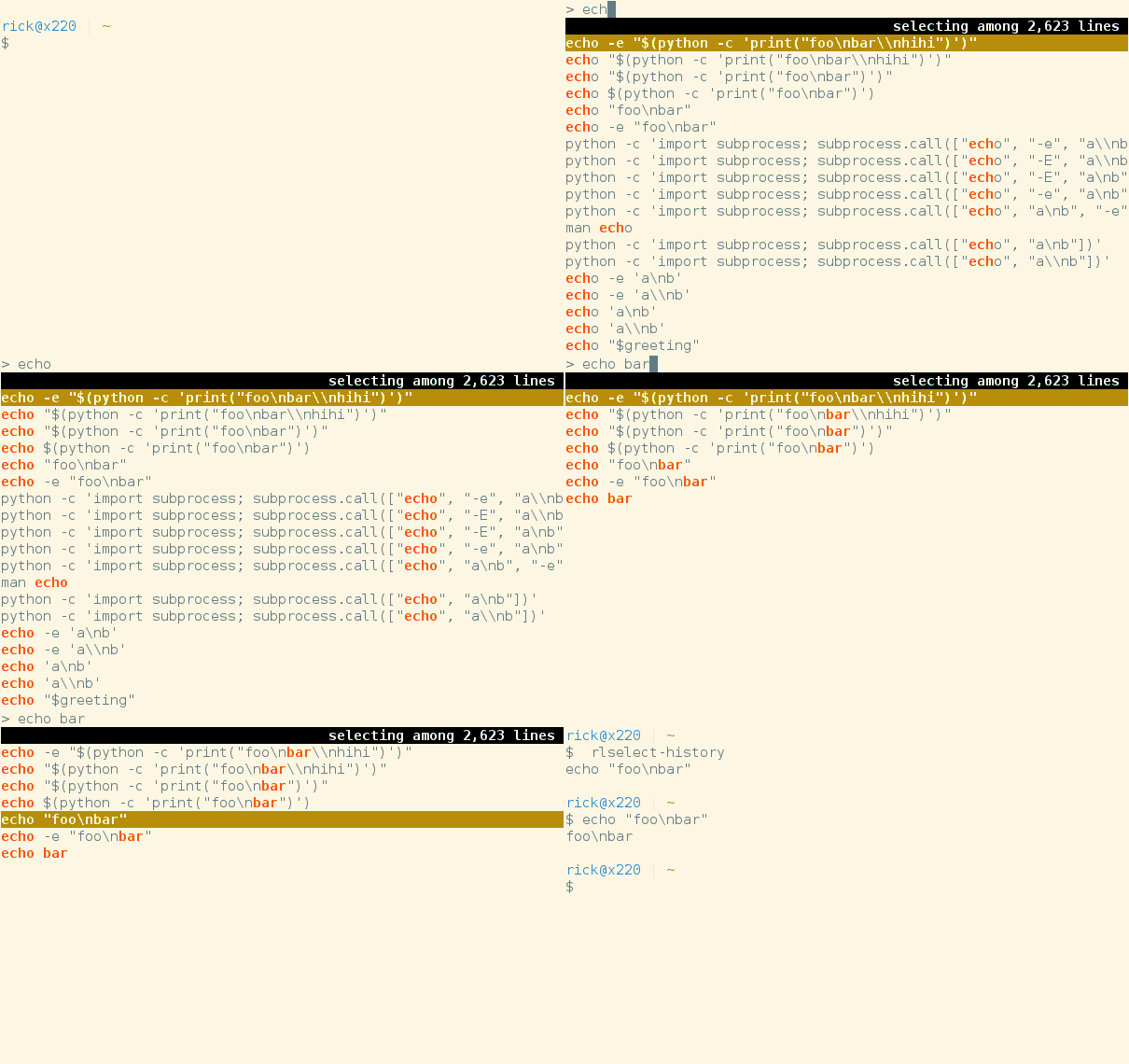
There are some differences between hstr and rlselect-history. I took only the
parts I personally wanted from hstr and put them into rlselect-history.
If you want to improve your Bash usage, I suggest taking a look at hstr or rlselect.
What links here?
- Replacing Ctrl-R in Bash without TIOCSTI I have previously written about how I use rlselect as a replacement for Ctrl+R in Bash. It works by creating a key binding in Bash...
What is Rickard working on and thinking about right now?
Every month I write a newsletter about just that. You will get updates about my current projects and thoughts about programming, and also get a chance to hit reply and interact with me. Subscribe to it below.